Introduction
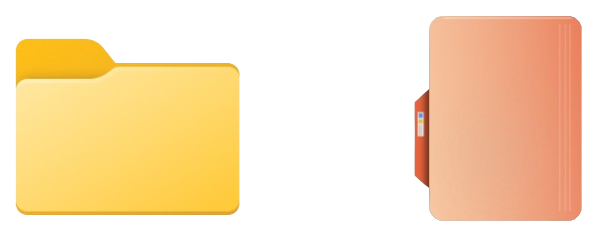
CustomFolder personalizes your Windows folders with your own icons, colors, gradients and emblems. Instead of every folder looking the same, each one can have a unique color, template and decorative emblem so you can recognize and organize them at a glance.
Version 4 introduces a redesigned WPF interface and adds several new features, including a color gradient with an adjustable angle, hexadecimal color input, precise PNG/JPG positioning with zoom and rotation, an emblems panel with categories, transforms (scale + angle) on emblems and images, 26 color schemes, 7 decorative window backgrounds and a frosted-glass effect on the preview.
The icons you create can be used on any Windows computer, whether or not CustomFolder is installed.
Requirements
- 1 Windows 10 64-bit version 1909 or above.
- 2 .NET 8 Desktop Runtime (x64). The application is built for net8.0-windows in framework-dependent mode, so this runtime must be installed. If it is missing, Windows offers to download it automatically when you run the app.
Main Screen
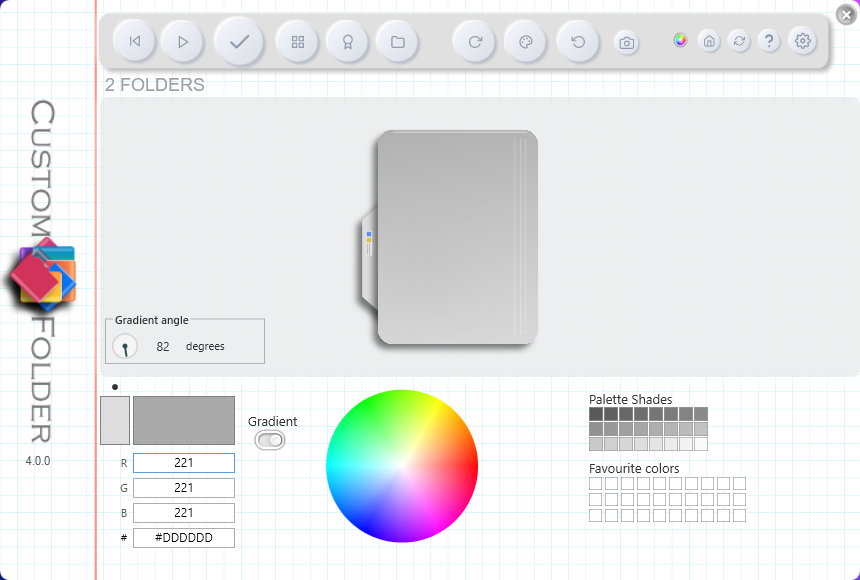
The window has no title bar — drag it from any empty area to move it. The top strip holds the application buttons; the color controls are on the lower left, the live icon preview is in the center, and the palette and favorite colors are on the right.
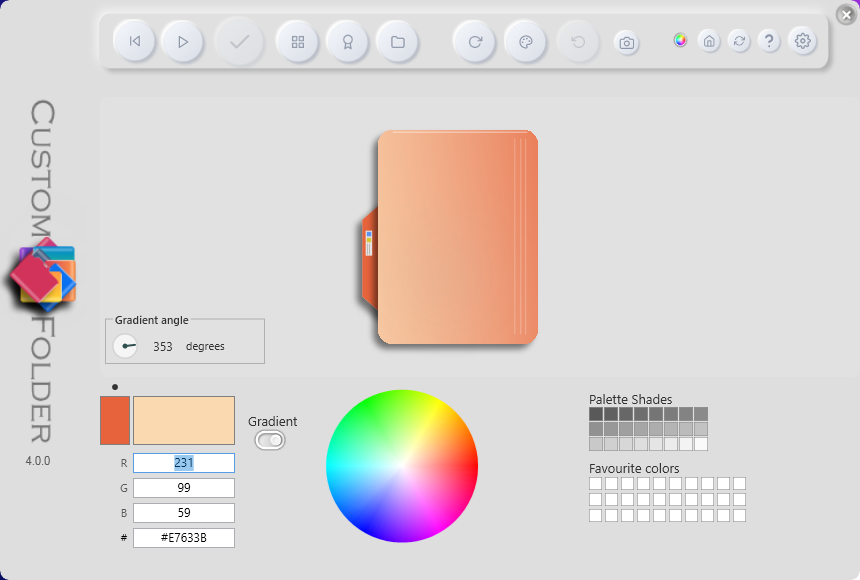

- ◀ ▶ Previous / next icon template (Z / X)12
- Apply Apply the design to the target folder3
- Icons Show / hide the personal icons panel (I)4
- Emblems Show / hide the emblems panel (E)5
- Folders Show / hide the multi-folder panel (F)6
- Palette Cycle through the color palettes (C)7
- Rotate Rotate the icon (templates that support it) (V)8
- Reset Restore the default Windows icon9
- Scheme Switch to the next color scheme; Shift+click = previous (Y / Shift+Y)11
- Gradient Turn the gradient between colors on or off
- Gallery Generate and open the HTML gallery of designs10
- GDZ Open the GDZ Software website12
- Update Check online for a newer version13
- Settings Show / hide the settings panel (G)15
- Help Open the online tutorial 14
- Close Close the application (Alt+F4)
Color scheme vs. window background — CustomFolder 4 has two independent visual systems that should not be confused:
- A Color schemes (skin) — 26 named combinations that change the working colors: primary, secondary, window background, preview background, gradient angle and the icon template. Applied with the Scheme button (Shift+click = previous), the Y key (Shift+Y = previous) or from the context menu.
- B Decorative window backgrounds — 8 states (no background + 7 images) that only change the window background image, without affecting icon colors. Cycle through them with the T key (Shift+T cycles backward) or from the Background submenu in the context menu.
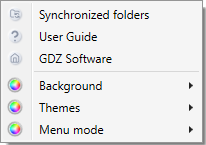
Context menu — right-clicking the window body opens a menu with:
- 1 Folders sync — opens the cloud-synchronized folders panel.
- 2 User guide — opens the online tutorial.
- 3 GDZ Software — opens the author's website.
- 4 Background — submenu with the 8 decorative backgrounds (no background + 7 images) by name.
- 5 Themes — submenu with the 26 color schemes by name.
- 6 Menu mode — toggles the main menu between Light and Dark; also with the M key.
Select Icon
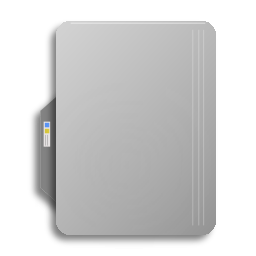
Built-in templates — there are 5 templates: Classic, Paper, Steel, Disc and Mobil. Navigate with the Z / X keys or the ◀ / ▶ buttons. Templates that support it can be rotated with the V key or the Rotate button (Disc and Mobil do not rotate).
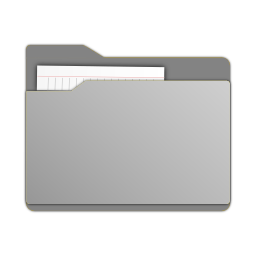
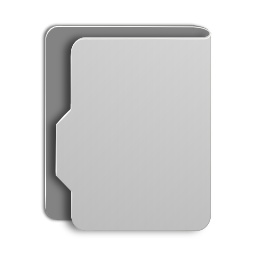
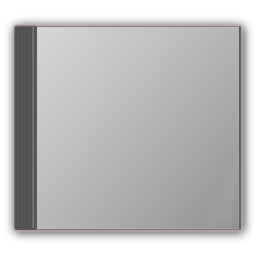
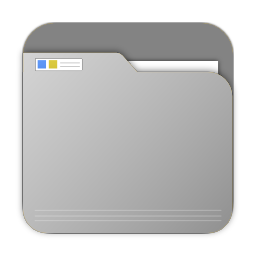
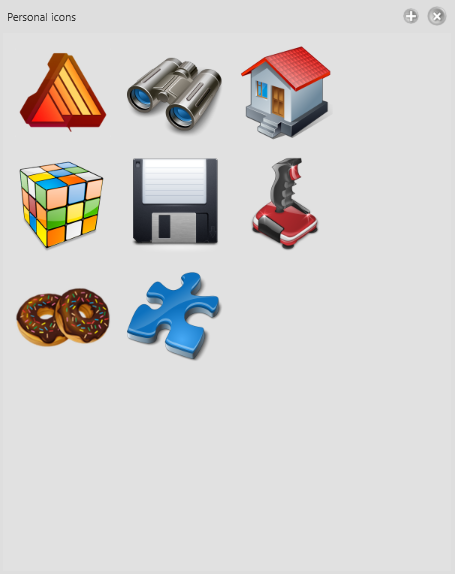
Personal icons panel — open it with the Icons button. Drag ICO or PNG files onto the panel to add them to your collection; icons are sorted alphabetically.
- L Left-click — applies the icon to the target folder.
- R Right-click — removes the icon from the collection (with confirmation).
- M Middle-click — opens the icon storage folder in Explorer.
Hovering over an icon shows an × button in the top-right corner to remove it.
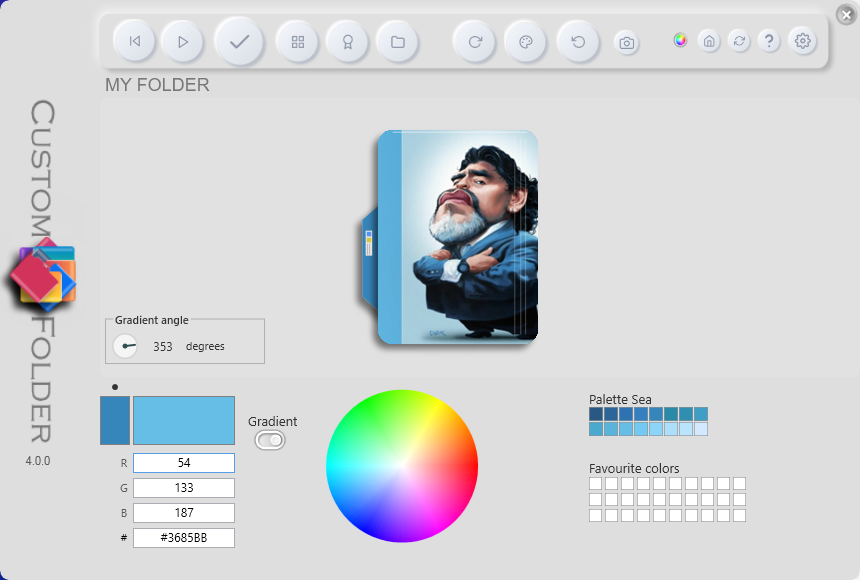
JPG or PNG image as the icon background — standard mode — drag a JPG image onto the main window to use it as the icon background. Non-square images are scaled to fit within 256 × 256 px.
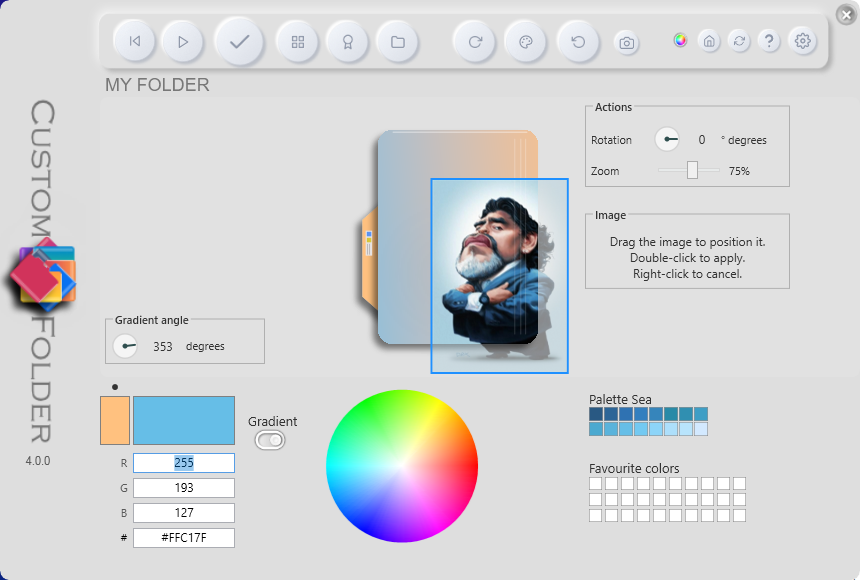
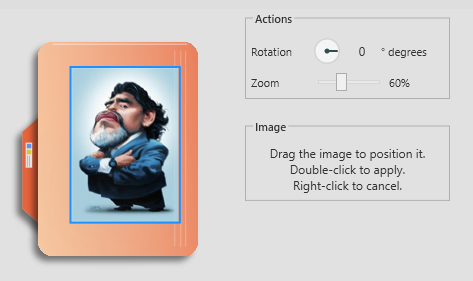
Precise PNG/JPG positioning with zoom and rotation (v4) — drag a PNG or JPG image directly onto the icon preview to enter floating positioning mode:
- 1 A draggable semi-transparent box appears over the preview.
- 2 Drag it to place the image precisely. The preview updates in real time with the composited result.
- 3 Adjust size and angle with the transform panel.
- 4 Double-clicking permanently applies the position.
- 5 Right-click cancels and restores the previous preview.
Transparent PNG pixels are composited correctly over the icon color (they don't turn black).
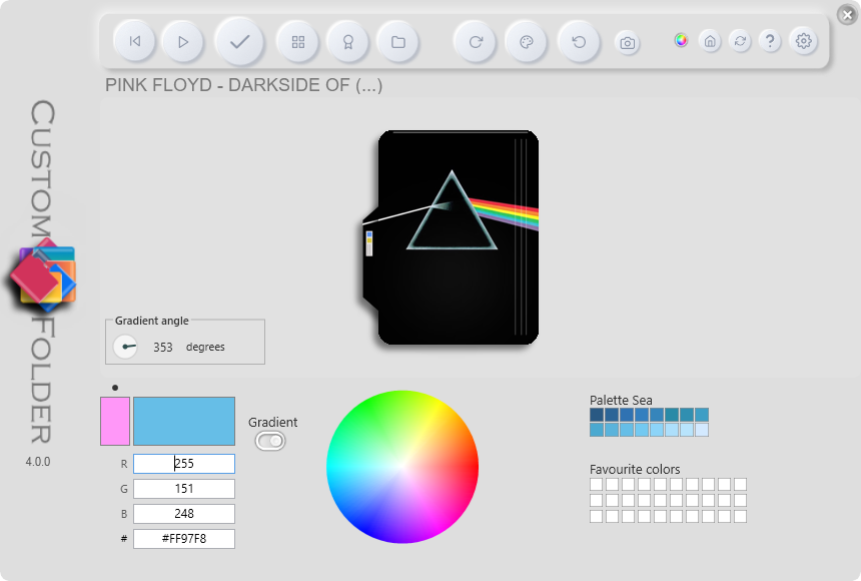
Music icon — if the target folder contains a folder.jpg file, CustomFolder automatically loads that album cover as the icon background when you drag the folder onto the window. No extra action is needed.
Clone an existing folder's icon — to reuse the icon from an already customized folder, drag it onto the personal icons panel: the icon is added to the collection and is immediately available for use.
Restore the default icon — use the Reset button to return the target folder to the standard Windows icon.
Select Color
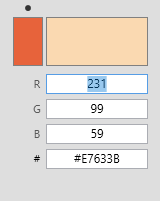
CustomFolder works with two colors at once: primary (folder body) and secondary (the tab, on templates that support it). A marker above the selectors shows which one is active; the Space key toggles between them.
Selection methods:
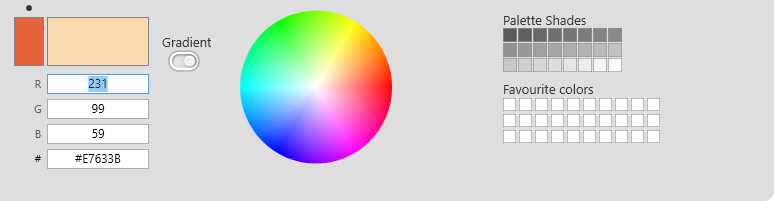
- 1 Color wheel — click or drag to pick any color.
- 2 Palette — several built-in palettes; cycle with the C key or the Palette button.
- 3 Favorite colors — 30 slots: roll the mouse wheel over a slot to save the active color, left-click to apply, right-click to delete.
- 4 RGB panel — precise values (0–255) per channel, confirmed with Enter or Tab.
- 5 Hex field (v4) — type the color as #RRGGBB (for example #3A7BD5) and press Enter; the R, G and B fields update automatically.
Hold Alt + click — changes the secondary color.
Hold Ctrl + click — changes the window background color.
Hold Shift + click — changes the preview background color.
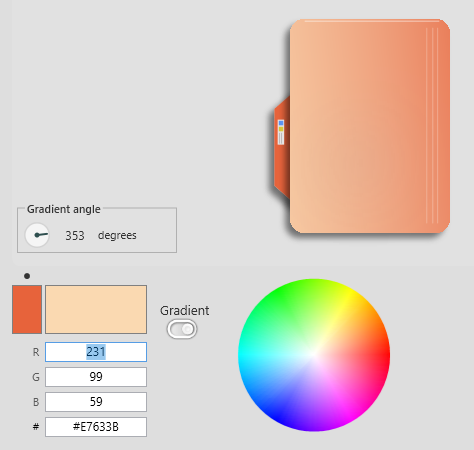
Gradient (v4) — the Gradient button turns a gradient between the primary and secondary colors on or off (the indicator switches between ✗ and ✓). When off, the primary color is used as a solid; when on, the gradient between primary and secondary is shown.
With the gradient active, the angle control adjusts its direction (0–359°): drag the circular indicator, use the mouse wheel over the control, or type the value in the text field and press Enter. The angle is saved with the design and restored when you reopen the app.
Preview background — double-click the preview to cycle through several preset background colors. This helps you check how the icon looks over different desktop backgrounds. You can also Shift + click on the wheel, the palette, or a favorite color to set that color as the preview background.
Select Emblems
Emblems are decorative elements overlaid on the icon. You can place up to 9 per icon.
Emblems panel — open it with the Emblems button. Emblems are grouped into expandable categories (v4): Status, Colors, Directions, Misc, Numbers and Personal (category headers can be hidden in Settings).
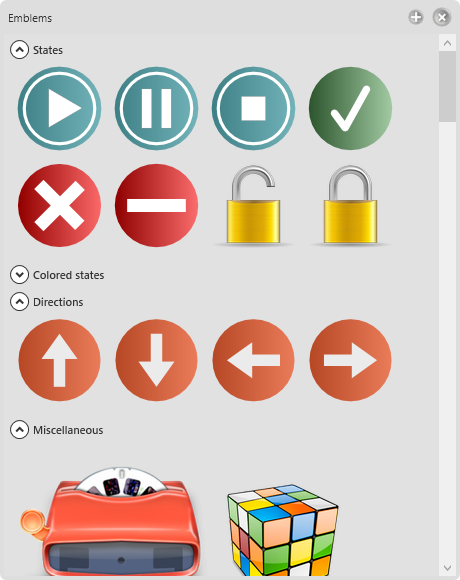
To add an emblem:
- 1 Click the desired emblem: it appears as a floating overlay on the preview and the transform panel activates.
- 2 Adjust zoom and rotation.
- 3 Drag the overlay to the exact position or choose a spot in the 3×3 grid.
- 4 Click Add.
- 5 Repeat up to 9 times if you like.
- 6 Click Apply in the main window to save the result.
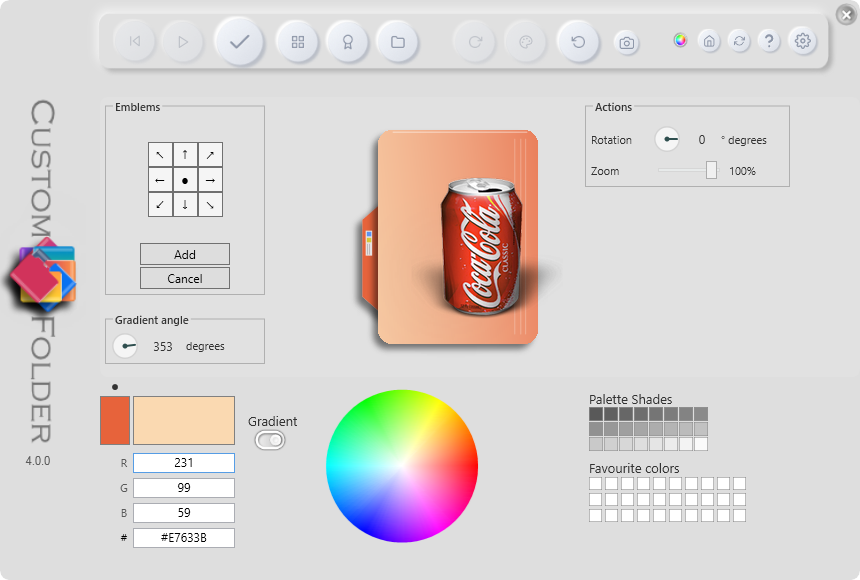
Personal emblems — drag PNG images onto the Emblems panel to add them to your personal collection. Each PNG must be under 2 MB; images with any side larger than 160 × 160 px are automatically resized on import.
Emblems are shown in the panel at their real size (100%), with no special backgrounds or marks. Hovering over an emblem shows a tooltip with its dimensions (width × height px). The size each emblem is placed at is then adjusted with the transform panel zoom (30%–110%).
- × Hovering an emblem shows an × button to remove it.
- R Right-click also removes it (with confirmation).
- M Middle-click opens the emblems folder in Explorer.
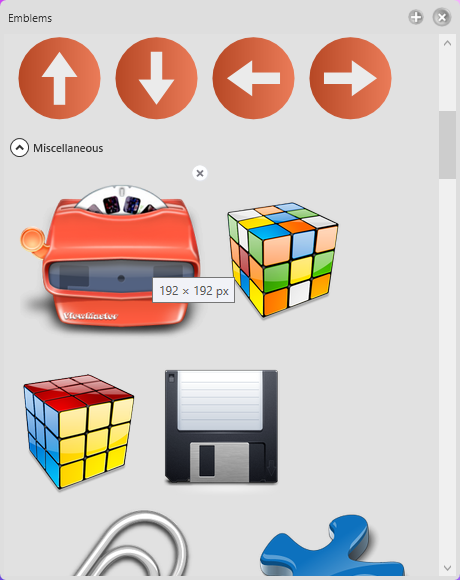
Transform Panel
This panel is shared by the floating PNG mode and the emblem mode — the controls work the same in both.
- 1 Rotation circle — drag the indicator to set the angle (0–359°). The mouse wheel over the circle also adjusts it.
- 2 Degrees field — type the angle numerically and press Enter.
- 3 Zoom slider — scales the image / emblem between 30% and 110%.
- 4 Mouse wheel over the overlay — increases or decreases the scale in 5% steps.
- 5 Percentage label — shows the current zoom in real time.
Multi-folder Panel
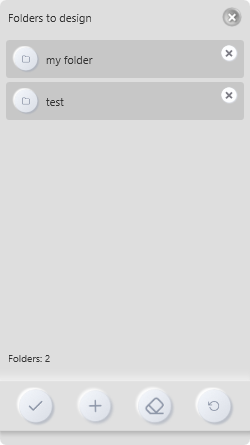
The multi-folder panel lets you apply the same design to multiple folders at once.
- 1 Open the panel with the F key or the Folders button.
- 2 Drag one or more folders onto the panel.
- 3 Click Apply to apply the active design to all of them.
- 4 Use Remove to take out individual folders and Clear to empty the list.
- M Middle-click a folder in the list to open it in Explorer.
Color Schemes (skins)
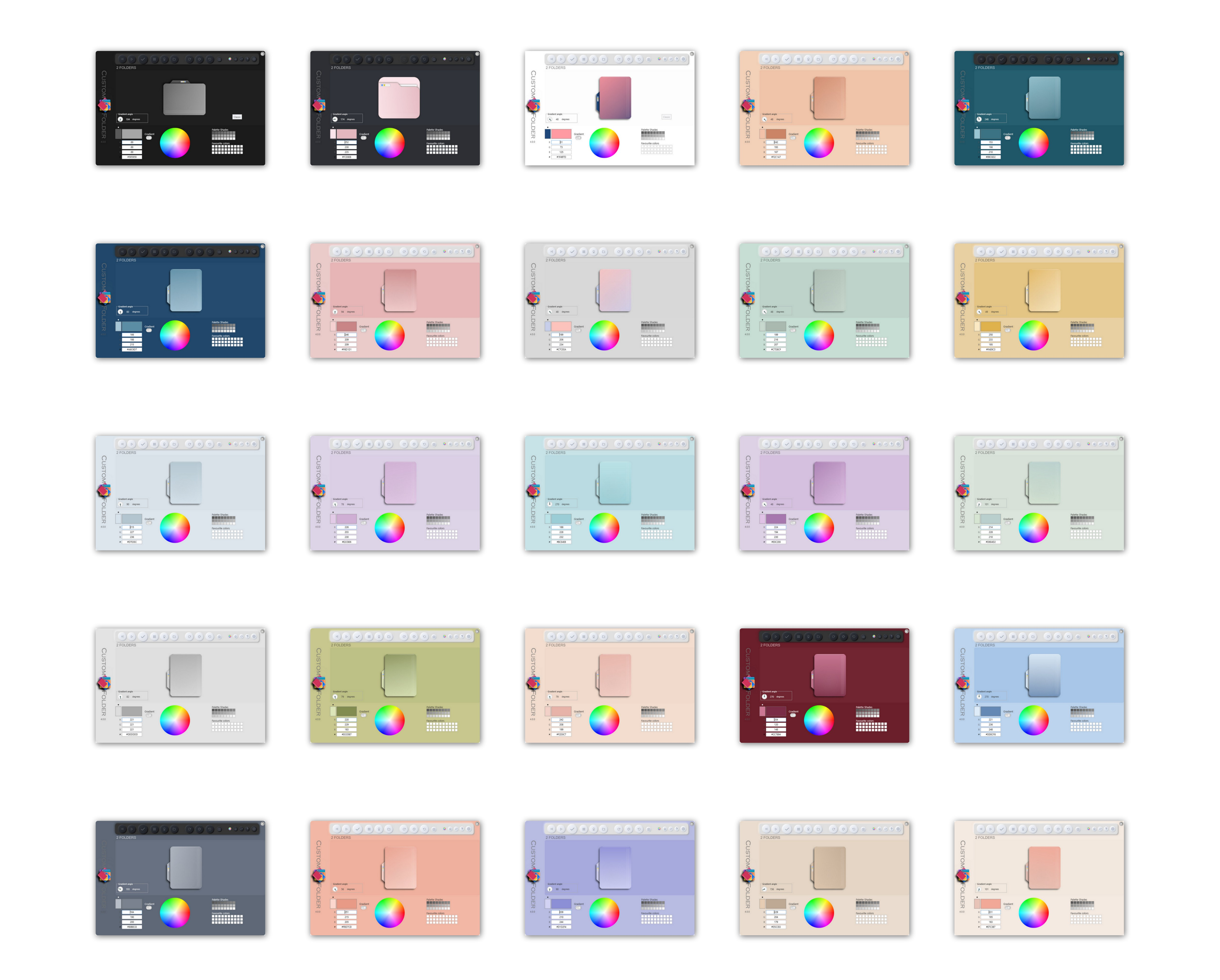
CustomFolder 4 includes 26 named color schemes. Each one applies the primary color, secondary color, window background, preview background, gradient angle and the icon template (default Classic) all at once; some schemes also change the active palette and set the context menu to dark mode.
- 1 The Scheme button switches to the next scheme; Shift + click switches to the previous scheme.
- 2 The Y key switches to the next scheme; Shift + Y switches to the previous scheme.
- 3 The Themes submenu in the context menu lets you choose any scheme by name.
- 4 The selected scheme is saved automatically.
Available schemes: Golden sand, Soft sand, Sky blue, Ice blue, Deep blue, Clean white, Charcoal, Warm light, Soft coral, Peach, Cream peach, Modern gray, Orange gray, Slate gray, Flat gray, Soft indigo, Lavender, Misty lilac, Fresh mint, Carbon black, Powder pink, Dark teal, Light turquoise, Mint green, Olive green and Red wine.
Decorative Window Background
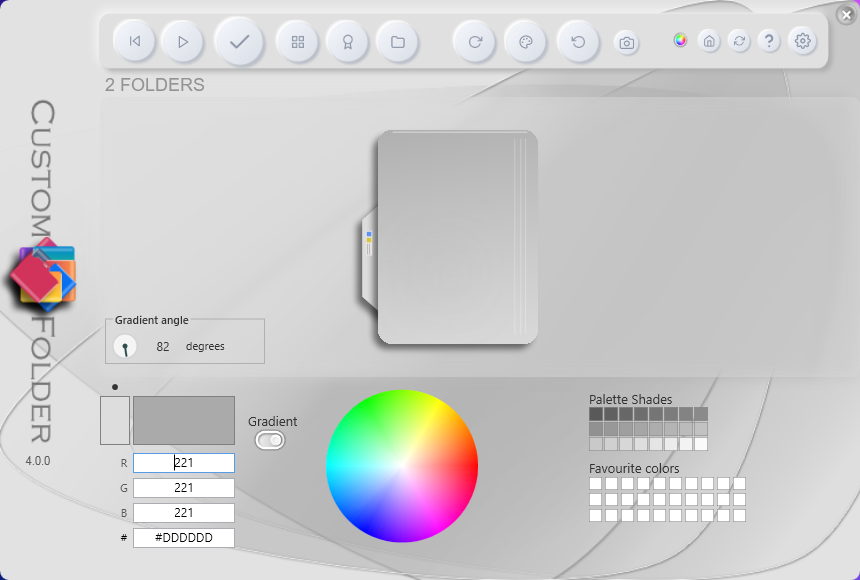
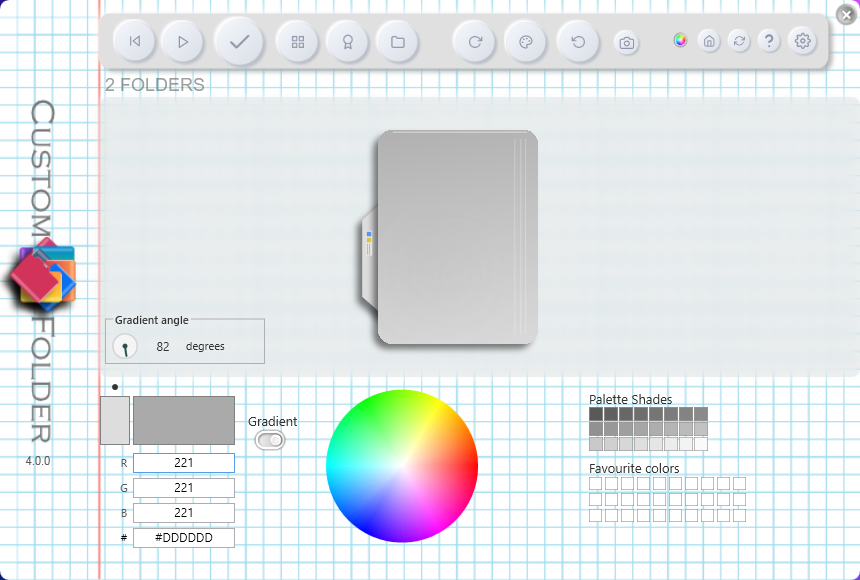
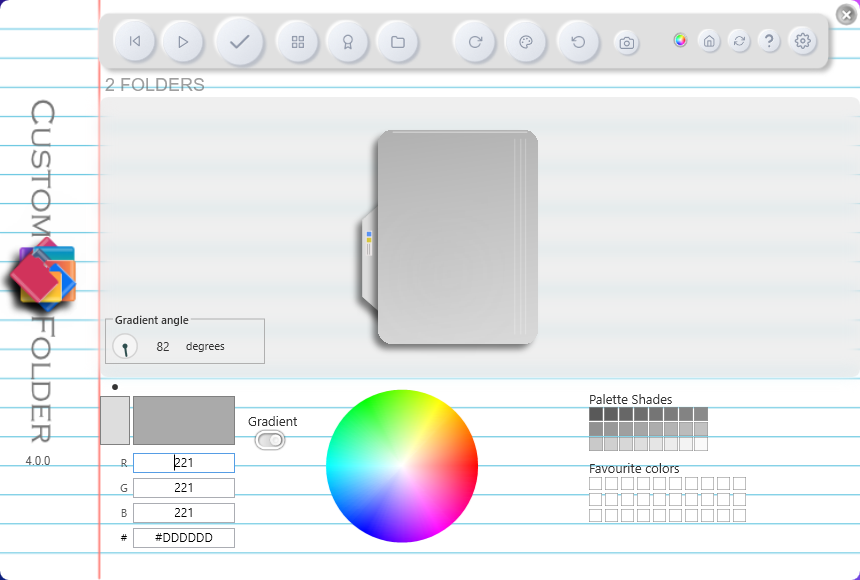
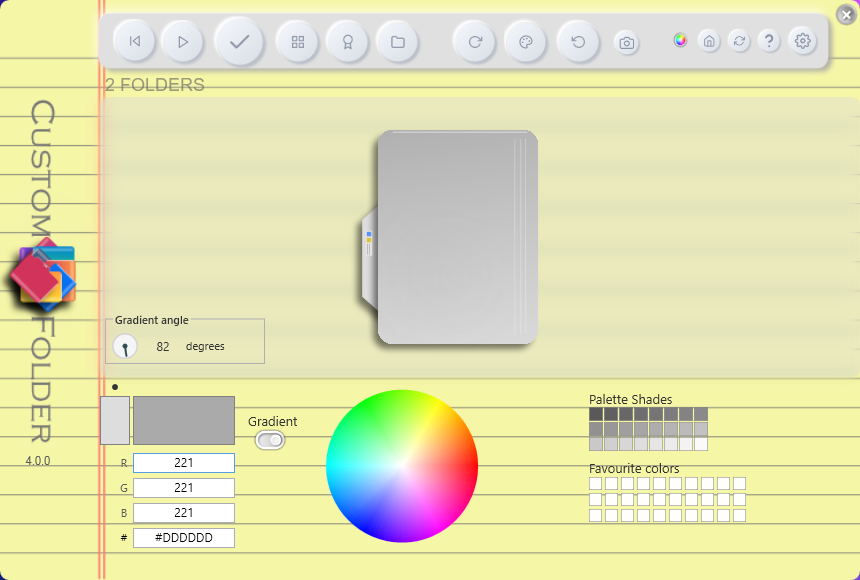
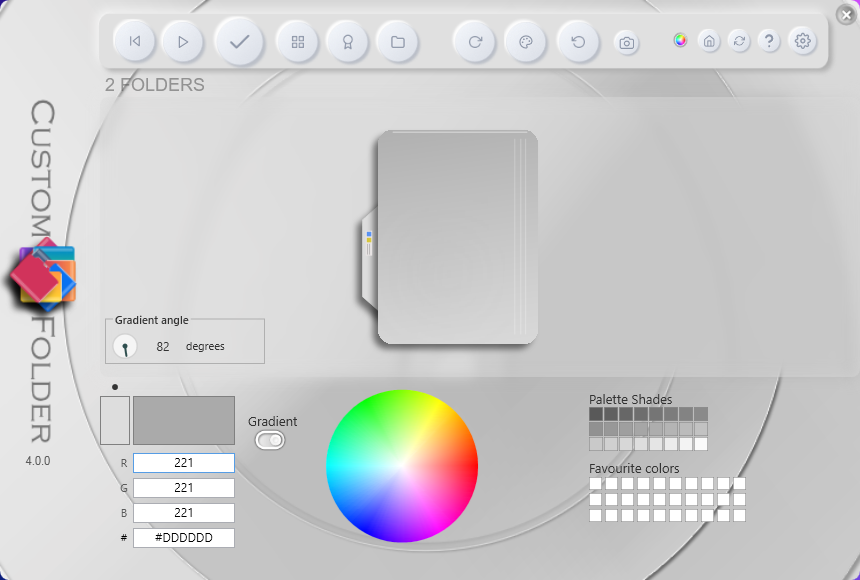
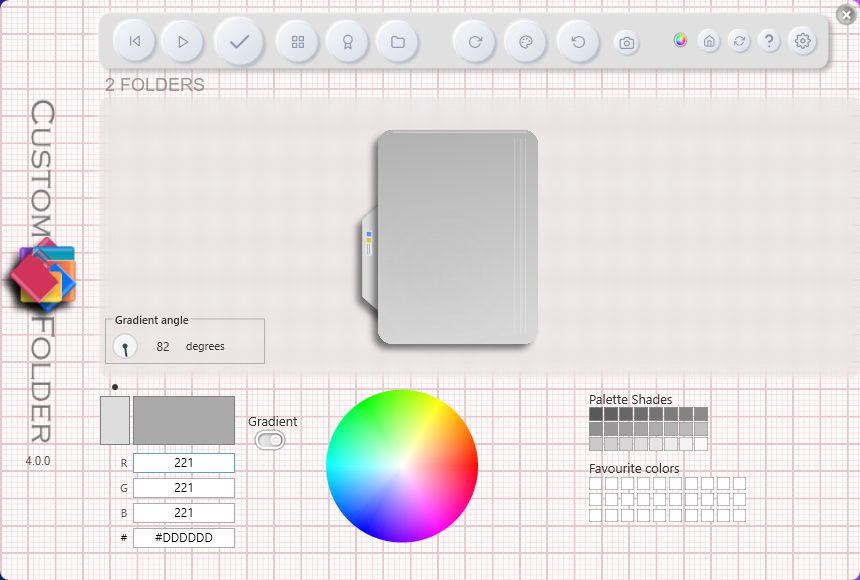
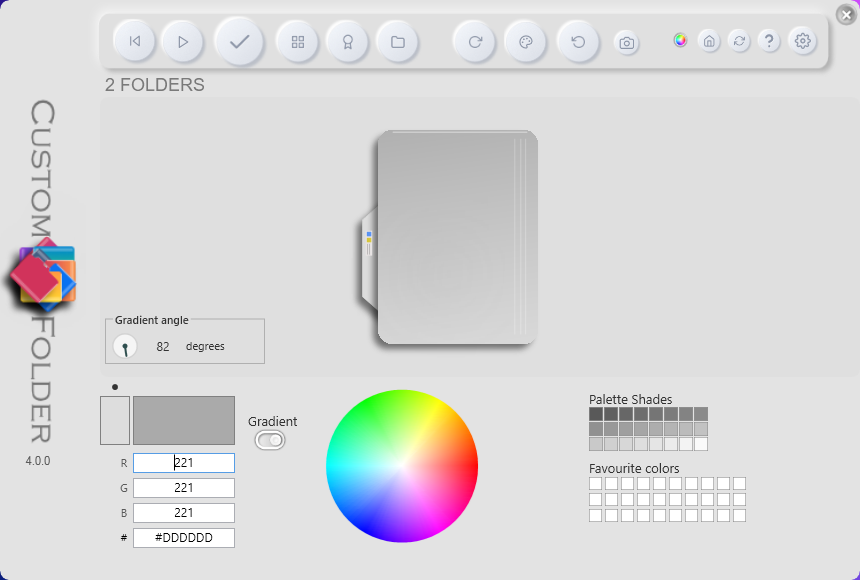
Apart from the color schemes, the window can show a decorative background image. The T key cycles through 8 states: no background and 7 built-in images (Breeze, Heavy Squared, Notepad, Notes, Circles, Grid and Squared); Shift + T switches to the previous background. You can also choose them by name from the Background submenu in the context menu. It only changes the appearance of the application window — it does not alter the icon colors or the active scheme. The chosen background is saved and restored on restart.
Synchronized Folders (cloud)
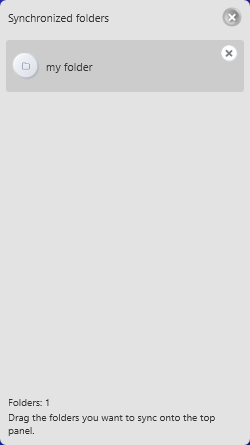
For folders shared in the cloud (OneDrive, Google Drive, etc.), local icon changes are not automatically synchronized to other users. This feature addresses that limitation by monitoring changes while the application is running and notifying you when another user applies a new icon.
Bilateral process (OneDrive):
Computer A (owner):
- 1 Apply the design to the folder.
- 2 Open the synchronized folders panel from the context menu (Folders sync).
- 3 Drag the folder onto the panel.
- 4 Share the folder with the user on Computer B — it will be uploaded to OneDrive.
Computer B (recipient):
- 1 Open OneDrive online, go to Shared, find the folder, right-click it, and select Add shortcut to My files. OneDrive will download the folder to the PC.
- 2 Open CustomFolder and add the folder in the synchronized folders panel as described above.
Note: the customizations are stored locally in Windows only — they are not visible in the OneDrive web interface.
Middle-click a folder in the list to open it in Explorer.
Settings
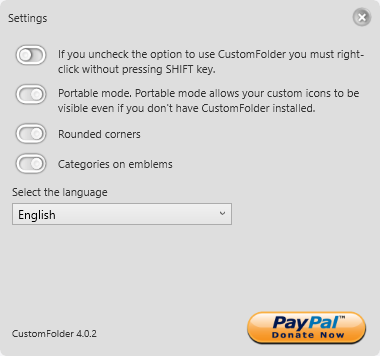
Open the panel with the Settings button or the G key (which also hides it again); it appears next to the main window.
- 1 Language — 11 languages available; the change takes effect when the app restarts.
- 2 Portable mode — saves the icon inside each folder so the design travels with it (default: on).
- 3 Rounded edges — rounded corners on the window and panels (default: on).
- 4 Show emblem categories — groups emblems into expandable sections (default: on).
- 5 Use Shift in the context menu — the CustomFolder entry only appears when holding Shift while right-clicking a folder.
CustomFolder integrates automatically into the Windows folder context menu.
Portable mode (icon inside the folder) — the Portable mode option (on by default) determines where each folder's .ico file is saved:
- On The icon is saved inside the folder itself. If you copy the folder to another PC or a USB drive, the design travels with it and looks the same on the other machine, even if CustomFolder is not installed there.
- Off The icon is saved centrally in the installation's Art folder. The folder customization only works on this computer; copying the folder to another PC loses the design.
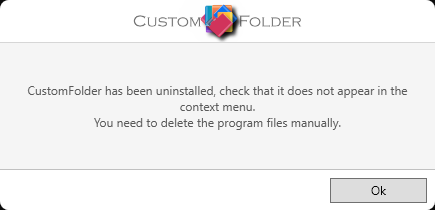
Using CustomFolder portable — CustomFolder can run directly from its folder, without going through an installer (for example from a USB drive). On first use, the app registers the Windows context-menu entry on its own. Before deleting the application folder, remove that registry entry by running:
- -u CustomFolder.exe -u — removes the context-menu entry and shows a confirmation notice.
- -us CustomFolder.exe -us — does the same silently (no notice).
Gallery
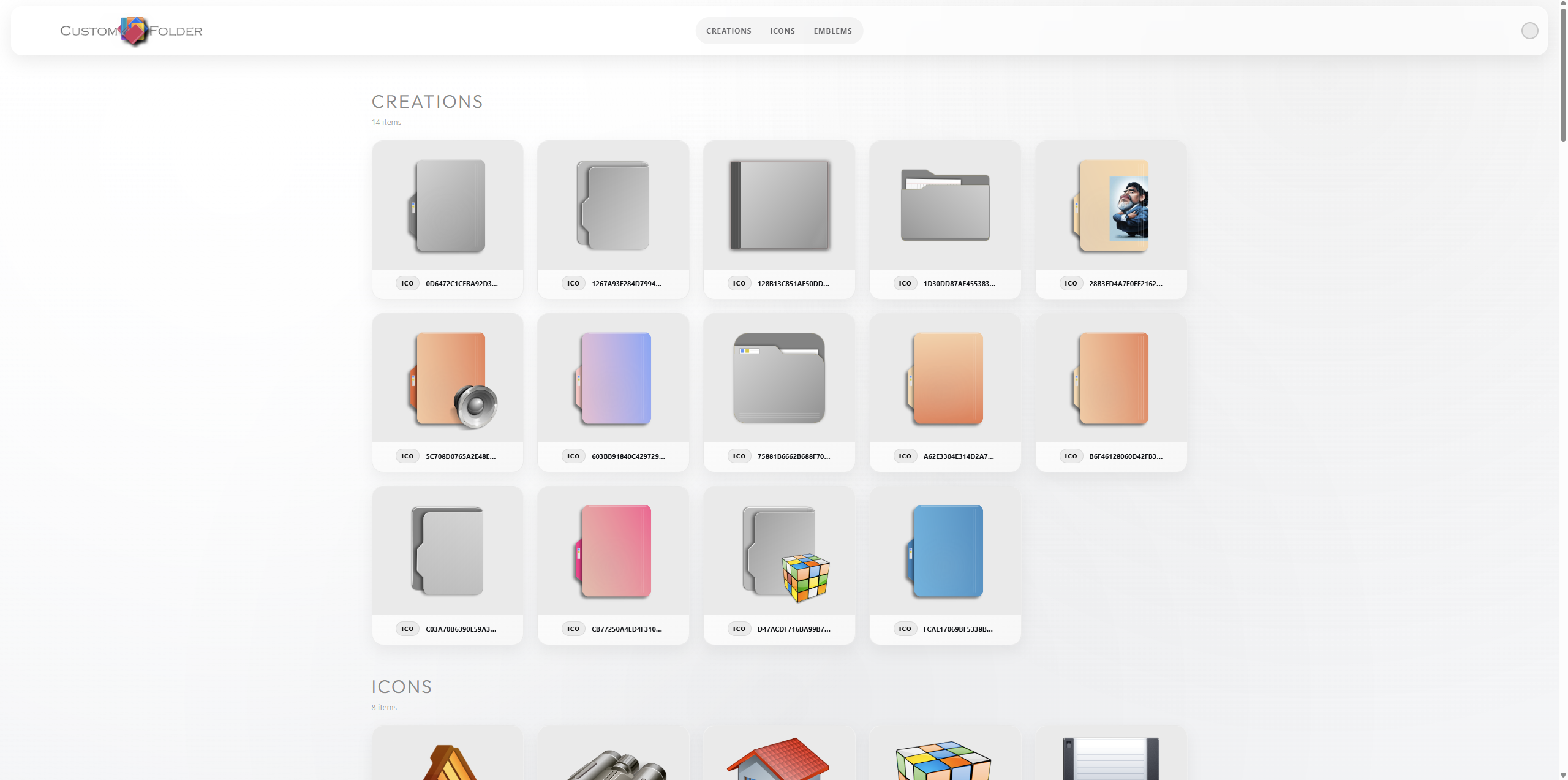
The Gallery button generates an HTML page with all the designs you've created, your personal icons and your emblem collection, and opens it in the default browser.
Updates & Notifications
On startup, CustomFolder checks online for a newer version; if one exists, it shows an update link in the window. The Update button opens the download page in the browser. The app can also display messages from the developer while it is running.
Keyboard Shortcuts
- Space Toggle between primary and secondary color
- T · Shift+T Next / previous decorative window background
- C · Shift+C Next / previous color palette
- Y · Shift+Y Next / previous color scheme
- Z · X Previous / next template
- V Rotate icon (if the template supports it)
- F Show / hide the folders panel
- E Show / hide the emblems panel
- I Show / hide the icons panel
- G Show / hide the settings panel
- M Toggle the context menu between light and dark
- F1 Show the keyboard shortcuts help window
- Esc Close the active panel or dialog
- Alt+F4 Save and close the application
Features
- 5 built-in templates (Classic, Paper, Steel, Disc, Mobil) with rotation on the ones that support it
- JPG/PNG images as the icon background
- Precise PNG/JPG positioning with a draggable overlay, zoom (30%–110%) and free rotation (0–359°) (v4)
- Emblems with zoom (30%–110%) and free rotation (0–359°) before placing them (v4)
- Unified transform panel for PNGs and emblems (v4)
- Automatic loading of album covers from folder.jpg
- 16.7 million colors · dual selection (primary + secondary)
- Gradient between colors with an adjustable angle (v4)
- Hexadecimal color input (v4)
- Several built-in palettes · 30 favorite color slots · color wheel · RGB panel
- 64 built-in emblems organized into expandable categories (v4), up to 9 per icon, with free-position floating mode
- Unlimited collections of personal icons and emblems · automatic PNG → ICO conversion
- Gallery of created icons · multi-folder panel · cloning of existing designs
- Cloud synchronization
- 26 color schemes (v4) and 7 decorative window backgrounds (v4)
- Configurable rounded edges and frosted-glass effect on the preview (v4)
- Windows context menu integration · portable mode · 11 languages
- Windows 10 64-bit version 1909 or above · requires .NET 8 Desktop Runtime (x64)
Supporting development
If you find CustomFolder useful and would like to support its continued development, you can make a donation via PayPal by scanning the QR code below.
Thank you for using CustomFolder.
