Introduction
Many users keep a large number of folders and documents on their PC desktop, making it hard to find anything quickly.
DesktopUp allows you to create new desktops by giving them a name and associating a folder. For instance, you can create a desktop called "Photos to be revealed" and select the folder where you have the photos you need to work with. When you need it, simply select the desktop from the list and click Use.
Your desktop will immediately display the contents of the folder associated with that name. The original Windows desktop is always one click away — just click the Windows button to return to it.
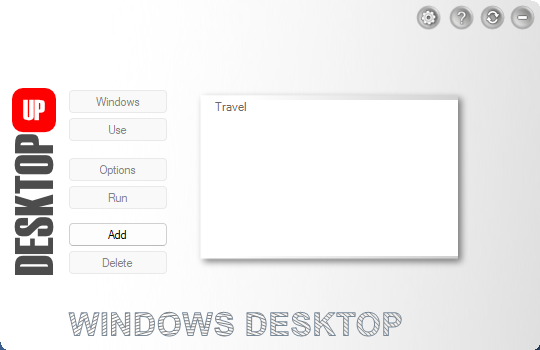
It is also possible to associate programs to be launched automatically when switching to a desktop. As an example, the "Photos to be revealed" desktop could have Lightroom associated, so it launches automatically when you switch to it.
By doing this you can create as many desktops as you want, each with different topics and programs:
Organizing your music collection? Create a desktop with album covers and lyrics, and set TagScanner to launch automatically.
A clever idea is to keep the Windows desktop almost empty so when you return to it there is no clutter. Or create a desktop to switch to when another person uses the computer.
Creating Desktops
On the main screen when opening for the first time, the desktop list will be empty and only the Add button will be enabled.
Click Add or drag and drop any folder onto the window — a name and folder for the new desktop will be requested.
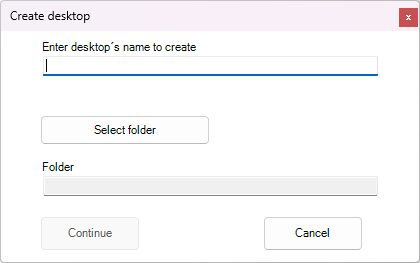
It is not possible to have two desktops with the same name, or two desktops pointing to the same folder. After creating a desktop and selecting it, the Add, Options, and Delete buttons become available.
Using Desktops
Click Use to switch to the selected desktop. Your Windows desktop will immediately display the contents of the folder associated with it. The name of the active desktop is shown at the bottom of the window.
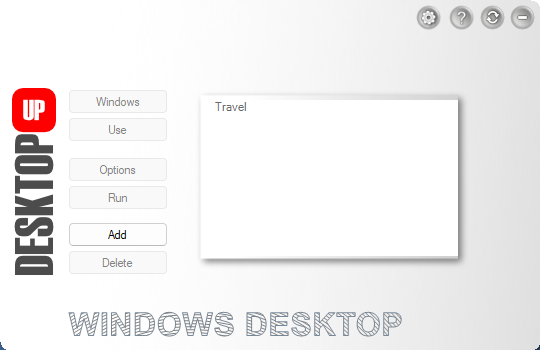
To switch to another desktop, select it from the list and click Use again. To return to the default Windows desktop, click the Windows button.
Other available actions on the main screen:
- Delete — removes the selected desktop (the actual folder is not deleted)
- Options — opens a screen with options for the selected desktop
- Run — manually launches the programs associated with the current desktop
The configuration file should not be edited by hand — doing so may cause unexpected behavior. When uninstalling, the configuration folder is not removed. Delete it manually if you want no trace of the software to remain.
Right-clicking anywhere on the main window opens the DesktopUp context menu with quick actions: switch, rename, change color, open folder, and more — without needing to use the toolbar buttons.
Main window context menu
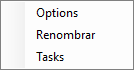
Desktop list context menu
Options
The Options screen shows the folder associated with the selected desktop at the top. Click Open to open that folder in Explorer.
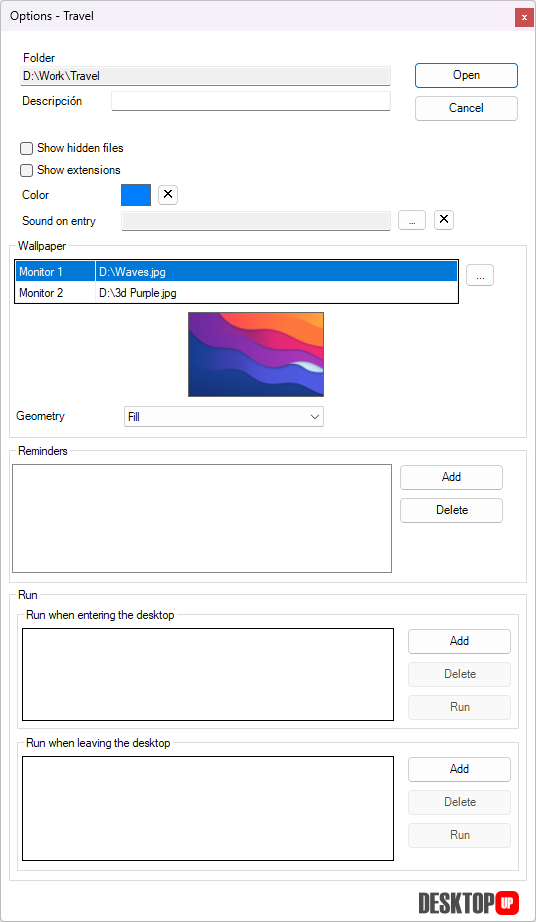
At the bottom, a panel lists all programs associated with this desktop. These programs launch automatically when you click Use on the main screen. Using the buttons on the right you can add, remove, or run a program from the list.
Task List
Each desktop has its own independent task list. Click the tasks button to open it and add, complete, or remove items. Tasks stay tied to their desktop — they don't mix with other desktops' lists.
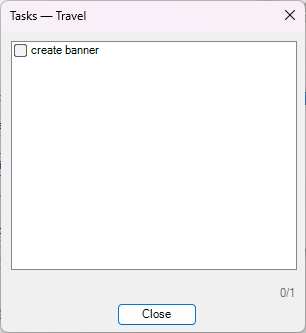
When switching to a desktop that has pending tasks, DesktopUp can show a reminder so nothing slips through the cracks. This behavior can be configured in Settings.
Settings
Clicking the Settings button opens the settings window.
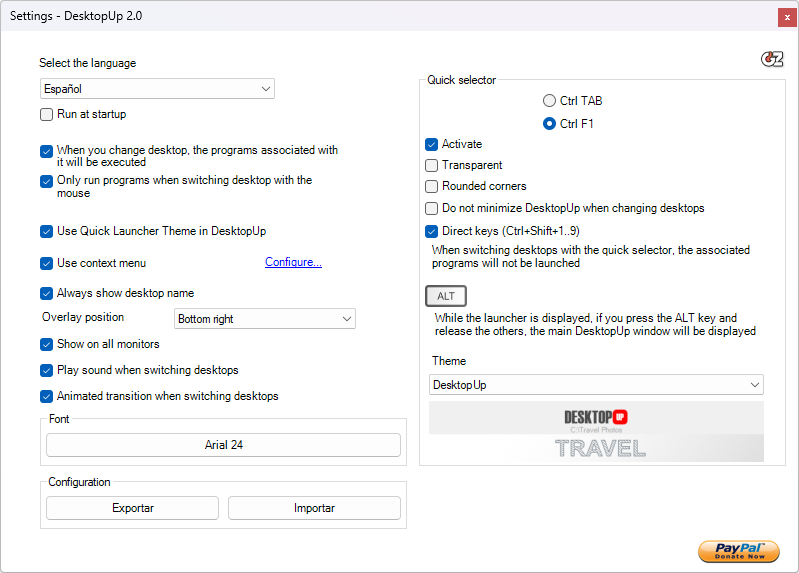
From Settings you can change the language of the program. DesktopUp automatically matches the Windows system language if that language is supported; otherwise it defaults to English. Once a language is selected it is saved for future sessions.
You can also configure whether associated programs should launch automatically when switching to a desktop — simply check or uncheck the option.
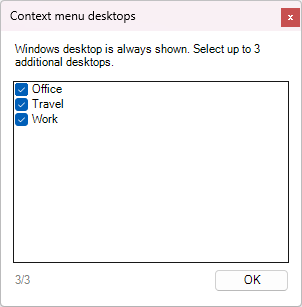
The Context Menu integration lets you copy and move files or folders to other desktops, and open a desktop directly from Explorer.
The Run at startup option controls whether DesktopUp launches with Windows.
Quick Selector
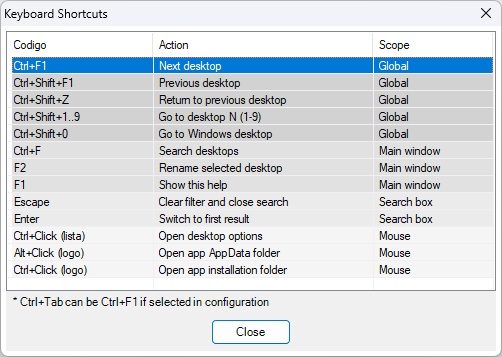
The Quick Selector lets you switch desktops without opening the main window, using keyboard shortcuts:
Press Alt and release the previous keys — display the main DesktopUp window

In Settings you can enable or disable the Quick Selector, toggle a transparency effect, and choose between round or square edges. Note that associated programs do not launch when switching via the Quick Selector.

Click the Hotkeys button in Settings to see the complete keyboard shortcut reference at any time.
Other Buttons

Help
Opens this user guide in the browser.

Update
Checks for DesktopUp updates and displays the results page. If a newer version is available, it can be downloaded from that page.

Settings
Opens the settings window described in the previous section.

Minimize
Minimizes DesktopUp to the system tray. From the tray icon menu you can also enable the Always on top option.
Features
- Create unlimited number of desktops
- Rename desktops
- Delete desktops
- Color-code each desktop for quick visual identification
- Add a custom description per desktop
- Drag and drop to create desktops
- Search / filter desktop list by name
- Compact mode for minimal window footprint
- Associate unlimited programs to each desktop, launched automatically when entering
- Associate programs to be launched when leaving a desktop
- Configure whether associated programs launch on every switch or only on manual (mouse) switches
- Delete executables associated with desktops
- Launch programs associated with the desktop manually
- Quick Selector — Ctrl+Tab / Ctrl+Shift+Tab to cycle through desktops
- Return to the previous desktop (Ctrl+Shift+Z)
- Direct keyboard shortcuts to jump to desktop N (Ctrl+Shift+1–9)
- Set individual wallpapers per desktop with multi-monitor support
- Save and restore icon positions per desktop
- Per-desktop shell settings: show/hide hidden files, show/hide file extensions
- Per-desktop to-do / task list with completion tracking
- On-Screen Display (OSD) overlay showing the active desktop name
- Configurable overlay corner (top-left, top-right, bottom-left, bottom-right)
- Multi-monitor overlay support
- Pending tasks reminder on desktop switch
- Sound playback on desktop switch
- Animated transition effect when switching desktops
- Custom OSD font and size
- Context menu in files and folders to copy or move them to other desktops, or to open desktops
- Themes (6 built-in visual themes)
- Rounded corners option
- Semi-transparent OSD option
- Pin window on top (always on top)
- Keep main window visible when switching desktops
- Export / Import full configuration (desktops, settings, wallpapers) as a ZIP backup
- Change software language
- Languages: English, French, Spanish, Italian, Portuguese, German, Russian, Korean, Chinese, Dutch (installer in English)
- Requires Windows 10 64-bit, version 1909 or later
Supporting development
If you find DesktopUp useful and would like to support its continued development, you can make a donation via PayPal by scanning the QR code below.
Thank you for using DesktopUp.